LivelyWallpaper MP4 backgrounds are the simplest way to bring motion to a Windows desktop. MP4 is the most common video container in use, and Lively accepts it directly, so a favourite clip can become a looping background in under a minute. Getting a polished result, though, depends on the file itself as much as the steps inside the app.
The sections below explain how to add an MP4, which encoding settings play best, how to make loops seamless and what to check when a video refuses to play.
Why MP4 Works So Well for Live Wallpapers
MP4 files usually contain H.264 or HEVC video, both of which modern graphics hardware can decode efficiently. That hardware support keeps CPU usage low while the wallpaper runs in the background. MP4 is also what most phones, cameras and editing apps export by default, so you rarely need to convert anything.
Lively plays video through mpv or VLC, giving it broad codec support. Besides MP4, the app accepts WebM, MKV, MOV, AVI, WMV, FLV and M4V files, along with several MPEG and OGG variants, so other formats are covered too.
| Format | Common codec | Notes for wallpapers |
|---|---|---|
| MP4 | H.264 / HEVC | Best all-round choice, widely hardware decoded |
| WebM | VP9 / AV1 | Efficient, good for web-sourced clips |
| MKV | Various | Flexible container, check the codec inside |
| MOV | H.264 / ProRes | ProRes files are large and heavier to decode |
| GIF | Image frames | Simple loops, limited colours and size |
Adding an MP4 to Lively Step by Step
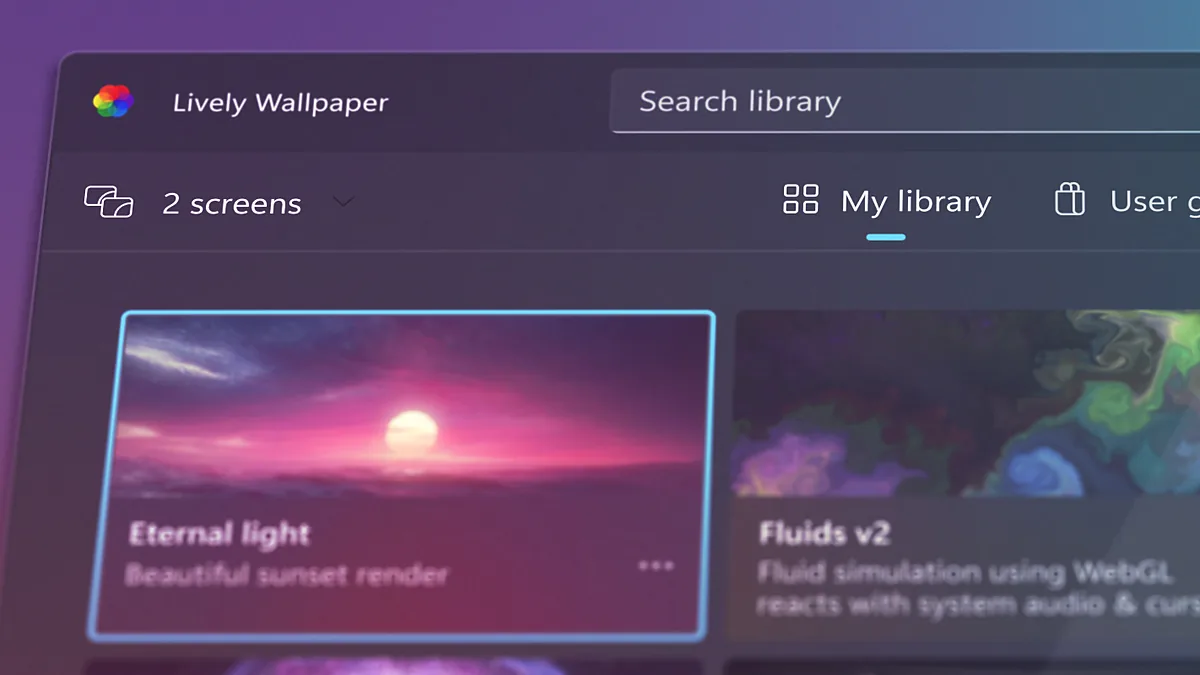
Importing a video follows the same flow every time. Open Lively and choose Add Wallpaper, then browse to your MP4, or simply drag the file from File Explorer into the Lively window. The app creates a library entry with a thumbnail and title.
Select the new entry, choose the display you want and apply it. The clip starts playing behind your desktop icons straight away and loops automatically when it reaches the end.
- Open Lively from the Start menu or system tray
- Select Add Wallpaper, or drag the MP4 into the window
- Confirm the title and details for the new library entry
- Choose a screen and apply the wallpaper
Adjusting the Video With Customise
After applying the wallpaper, open Customise to see options for that video. Depending on the player in use, you can adjust scaling, playback speed and image settings such as brightness or saturation. Lowering brightness slightly often keeps desktop icons easier to read.
Preparing the Best MP4 File
Resolution should match your monitor where possible. A 1920 × 1080 file suits a 1080p screen, while a 4K monitor benefits from a 3840 × 2160 source, as explained in the LivelyWallpaper 4K article. Oversized files waste resources without improving what you see.
Keep clips short. A loop of ten to thirty seconds feels natural, uses little disk space and decodes quickly. Longer videos work too, yet they mostly add file size rather than visual value for a background.
- Use H.264 for the widest hardware decoding support
- Choose 30 fps for calm scenes to reduce load
- Remove the audio track if you never want sound from the wallpaper
- Trim the clip so the first and last frames match closely
Making a Seamless Loop
A visible jump at the loop point is the most common flaw in video wallpapers. Clips designed as loops, such as rotating particles or gently swaying trees, restart invisibly. Ordinary footage often needs trimming so that movement at the end lines up with the beginning.
Video editors can help with a short crossfade between the end and the start, which softens the transition. Slow-moving scenes with no camera motion are naturally easier to loop than handheld footage.
Where to Find Good MP4 Loops
Your own recordings are the safest source, because you already own the rights. Phone footage of rain, clouds, a fireplace or traffic at night can make a beautiful wallpaper when it is shot on a tripod or steady surface and trimmed carefully.
Stock video libraries are another option, though licences differ. Some clips are free for personal use, while others require attribution or payment. Reading the licence before importing a clip keeps your desktop free of legal doubts, particularly if you plan to share the wallpaper with others.
- Record steady footage with your phone on a tripod
- Use stock clips whose licence covers personal desktop use
- Export animations you created in editing or 3D software
- Credit creators when sharing a wallpaper that uses their work
Audio and Volume Settings
Many MP4 files include sound. Lively has a global volume control and an option to play audio only when the desktop is focused, so music from a wallpaper does not compete with games or calls. Muting is the usual choice for everyday use.
For multi-monitor setups, audio output can be limited to one screen's wallpaper. That prevents several clips from playing sound at once when different videos run on each display.
When an MP4 Will Not Play
If a video shows a black screen or an error, the codec inside the MP4 is the usual suspect. Lively's settings let you switch the video player, and trying the alternative often resolves playback failures straight away.
Pause rules can also look like a playback problem. A maximised or fullscreen window may be pausing the wallpaper deliberately. Minimising other windows or reviewing the performance rules confirms whether that is happening. The CPU and GPU usage article covers those rules in depth.
| Symptom | Likely cause | What to try |
|---|---|---|
| Black screen | Unsupported codec | Switch video player or re-export as H.264 |
| Stutters | High resolution or bitrate | Use a smaller or lower-bitrate file |
| Freezes when apps open | Pause rule active | Review playback rules in settings |
| Sound plays unexpectedly | Audio track present | Mute or lower wallpaper volume |
Re-exporting a stubborn clip as H.264 MP4 at your screen's resolution fixes most playback trouble in one step.
Conclusion
LivelyWallpaper MP4 backgrounds need only a few clicks: add the file, choose a screen and apply it. The quality of the result comes from preparation, with sensible resolution, a seamless loop and a widely supported codec.
Keep wallpaper audio muted or limited, rely on pause rules for games and fullscreen apps, and switch the video player whenever a stubborn file refuses to cooperate. Your own clips then become dependable, eye-catching desktop backgrounds.