LivelyWallpaper custom wallpapers let you move beyond the bundled collection and put your own media behind the desktop icons. Holiday footage, a looping animation you made, a favourite web visualiser or even a still photo can all become part of your library. Lively accepts several file types and makes importing them almost effortless.
This article explains which content you can use, how to add it, how to fine-tune each wallpaper and how to keep a growing collection organised.
What Counts as a Custom Wallpaper
Anything you add yourself is a custom wallpaper. Lively groups supported content into a handful of types, each handled by a suitable engine. Videos and GIFs play through a media player, web wallpapers run in a Chromium-based renderer, and certain applications can run directly as interactive scenes.
| Type | Supported examples | Interactive? |
|---|---|---|
| Video | MP4, WebM, MKV, MOV, AVI, WMV, FLV, M4V | No |
| Animated image | GIF | No |
| Picture | JPG, PNG, BMP, TIFF, WebP | No |
| Web | HTML files, supported URLs, Shadertoy links | Often yes |
| Application | Unity and Godot builds (.exe) | Yes |
Adding Your Own Media
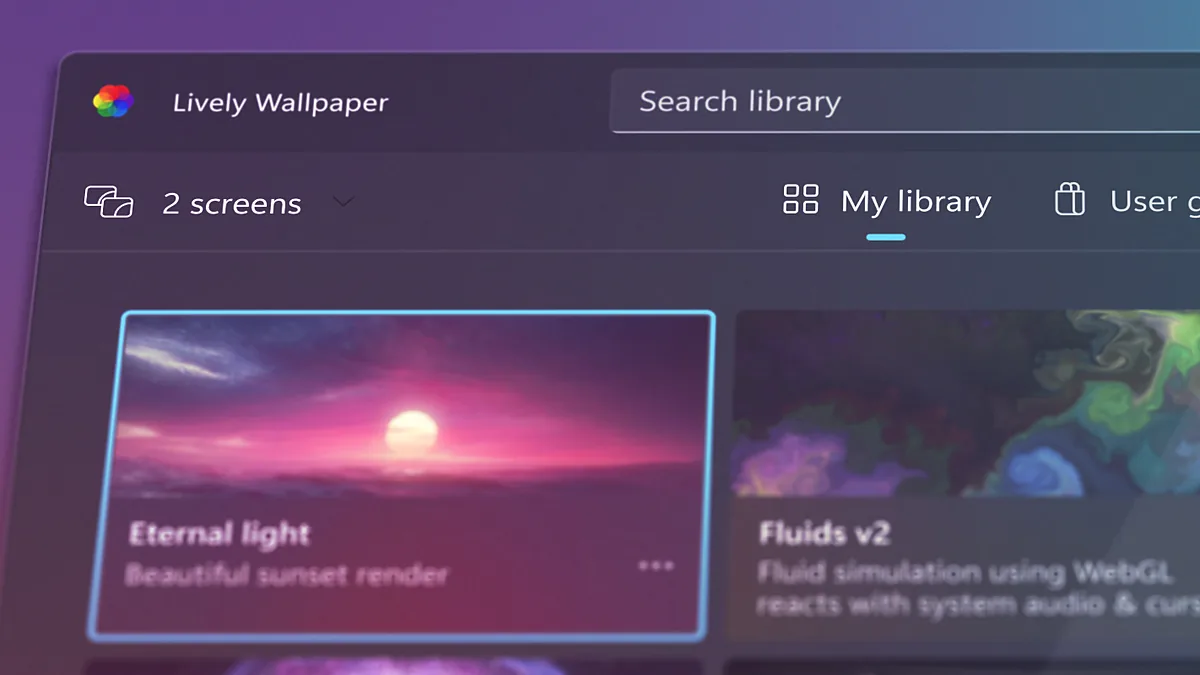
Lively's Add Wallpaper button opens an import panel where you can browse for a file or paste a web address. Dragging a file from File Explorer onto the Lively window does the same job even faster. The app then creates a library entry with a title and preview.
After importing, select the entry and apply it to a screen. Your media starts playing behind the desktop icons immediately. Multi-monitor users can repeat the process for each display, as covered in the dual monitor article.
- Select Add Wallpaper or drag a file into the window
- Paste a URL for web content or a Shadertoy scene
- Edit the title and description so the entry is easy to find
- Apply the wallpaper and pick the target display
Videos and GIFs
Personal video clips make the most striking custom wallpapers. Short loops with gentle motion, such as waves, clouds or rain on a window, work especially well. The MP4 wallpaper article explains encoding settings and seamless loops in detail.
GIFs suit small, playful animations. Because GIFs use limited colours and are often low resolution, they look best with pixel art, simple illustrations or retro designs rather than photographic scenes on large screens.
Web Pages and Interactive Scenes
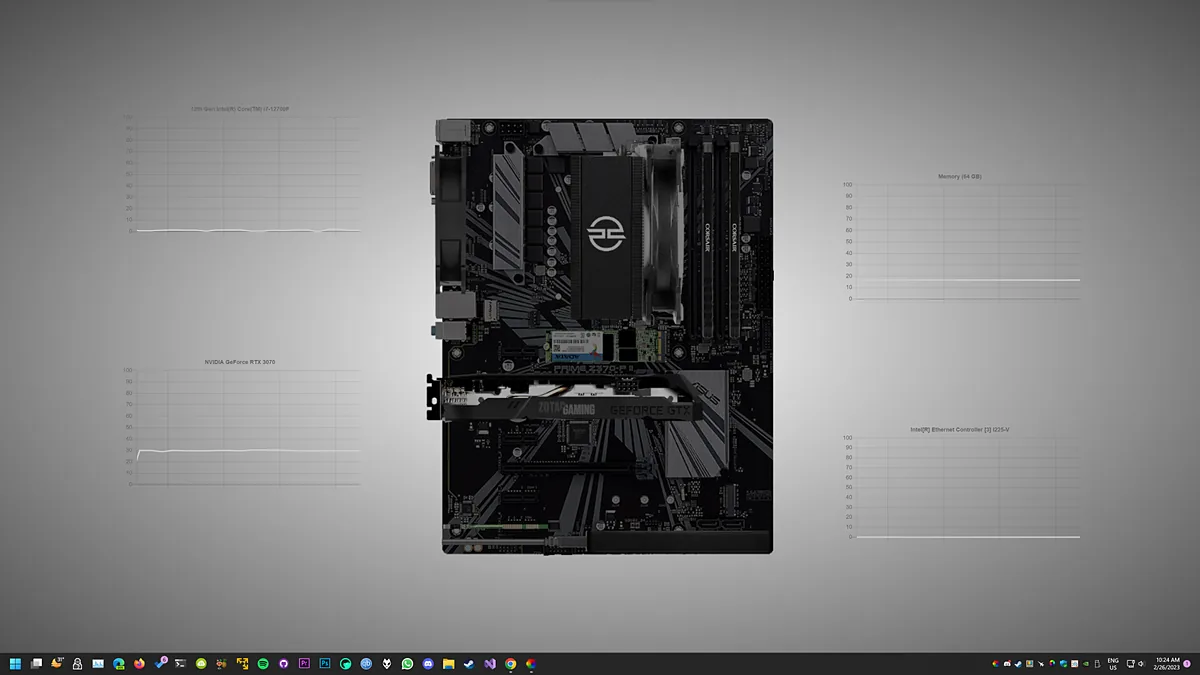
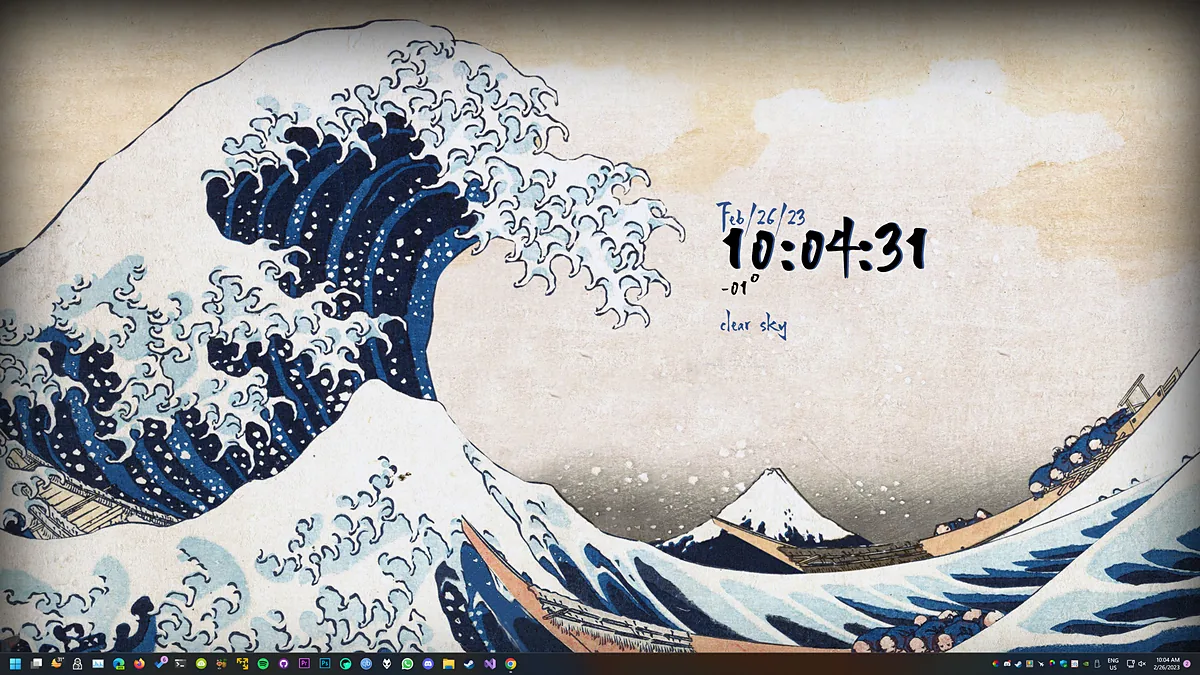
Web wallpapers open the door to creative, responsive backgrounds. Lively's renderer runs HTML, CSS and JavaScript, so interactive visualisers, clocks and generative art can live on your desktop. Some scenes respond to the cursor, while others react to system audio through the Lively API.
Developers can build wallpapers with access to hardware readings, an audio graph and music information. Lively also supports customisable properties, letting a wallpaper expose sliders, colour pickers and toggles in the Customise panel.
A Note on Application Wallpapers
Unity and Godot builds run as full programs. They can create stunning interactive scenes, yet an .exe has the same access as any software on your PC. Use application wallpapers only from creators you trust completely.
Fine-Tuning With Customise
Every applied wallpaper has a Customise panel. For videos, it typically includes scaling, playback speed and image adjustments, depending on the active video player. Web wallpapers show whatever properties their creator defined, such as colours, speeds or text.
Small adjustments make a big difference to daily comfort. Dimming a bright scene slightly, slowing a busy animation or changing colours to match your Windows accent can turn a good wallpaper into one you never want to change.
- Lower brightness to keep desktop icons readable
- Reduce speed for calmer work sessions
- Choose fill scaling to avoid black bars
- Save time by finding presets that suit your typical day
Organising Your Collection
A library grows quickly once importing becomes a habit. Clear titles help, as do descriptions that note the source, resolution or mood. Removing wallpapers you no longer use keeps the library quick to browse.
Lively can export library entries as zip packages, which is handy for backing up favourites or sharing a scene with friends. Importing that zip on another PC recreates the wallpaper along with its details.
| Habit | Benefit |
|---|---|
| Descriptive titles | Find wallpapers faster |
| Notes on source and licence | Credit creators correctly |
| Regular clean-ups | A tidy, responsive library |
| Zip exports of favourites | Easy backup and sharing |
The best custom wallpapers come from content you own or are licensed to use, prepared at the resolution of your screen.
Respecting Licences and Credits
Custom wallpapers often begin with someone else's work, such as a stock clip, a fan animation or an open-source web visualiser. Before importing or sharing, check whether the licence allows personal use, modification and redistribution, since these permissions are frequently separate.
Adding the creator's name and the original link to the wallpaper's description inside Lively is a simple habit that pays off. You will always know where a scene came from, and anyone you share it with can credit the creator correctly too.
- Read the licence before using a third-party clip or artwork
- Keep the source link in the wallpaper description
- Avoid sharing paid content outside its licence terms
- Prefer your own footage for wallpapers you plan to distribute
Frequently Asked Questions
Yes. Lively accepts common image formats such as JPG, PNG and WebP, alongside videos, GIFs and web content.
Choose Add Wallpaper and paste the URL. Supported pages, including Shadertoy links, load in Lively's Chromium-based renderer.
Yes. Export the entry from your library as a zip package and import it into Lively on the other PC, keeping any creator's licence in mind.
Conclusion
LivelyWallpaper custom wallpapers turn your own videos, GIFs, pictures and web creations into living desktop backgrounds. Drag and drop importing, flexible file support and a Customise panel make the process quick and rewarding.
Prepare files at the right resolution, trust only safe sources for application wallpapers, and keep the library tidy with clear titles and exports. Your desktop then becomes a personal gallery that changes whenever you do.